RingCentral Integration Guide
Follow these steps to connect your RingCentral account with DialApp
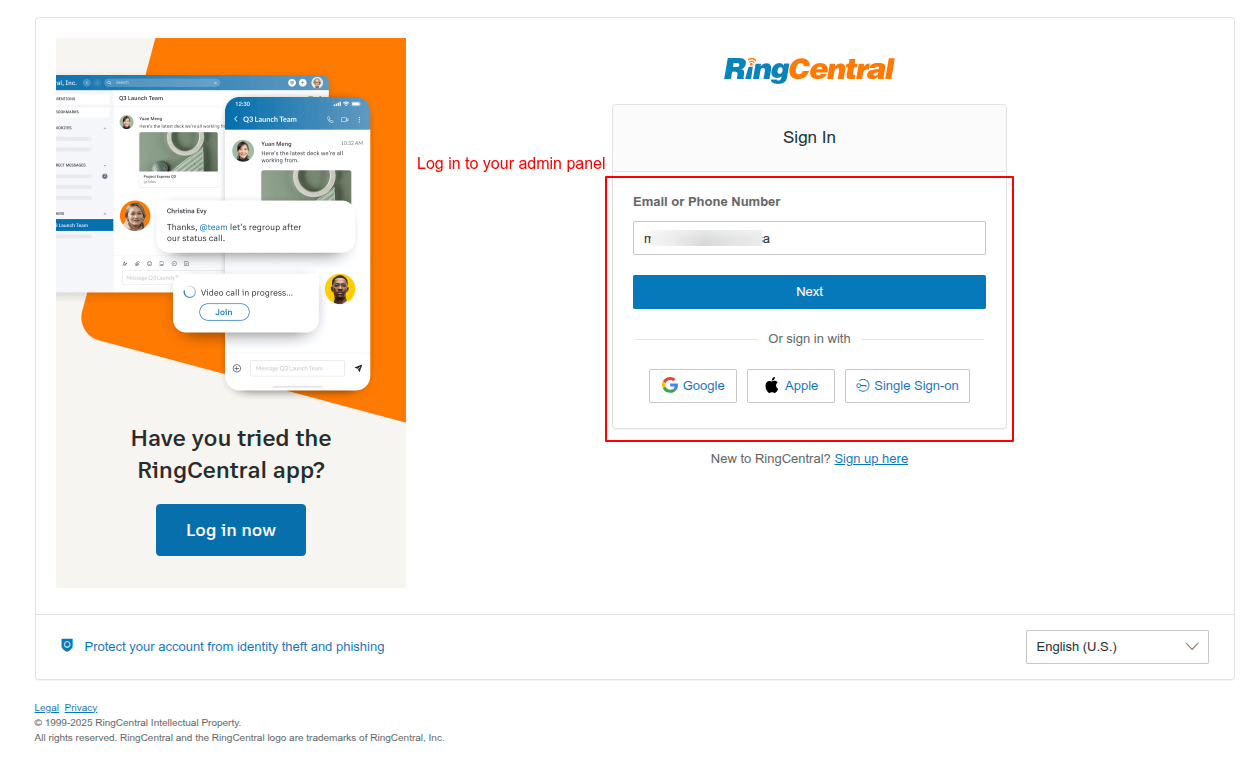
Login to RingCentral Admin Portal
Access your RingCentral admin panel
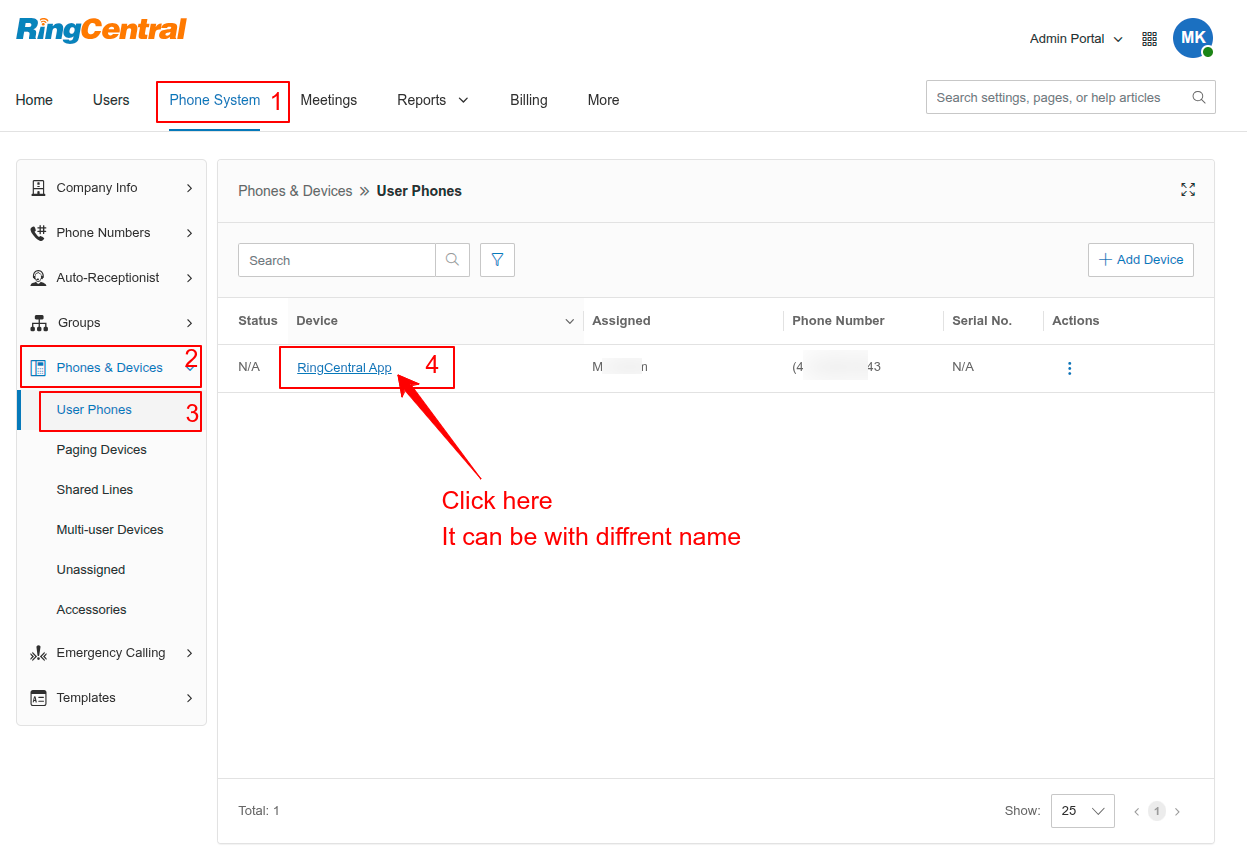
Navigate to User Phones
Go to Phone System → Phones & Devices → User Phones
Click on your main line device from the list
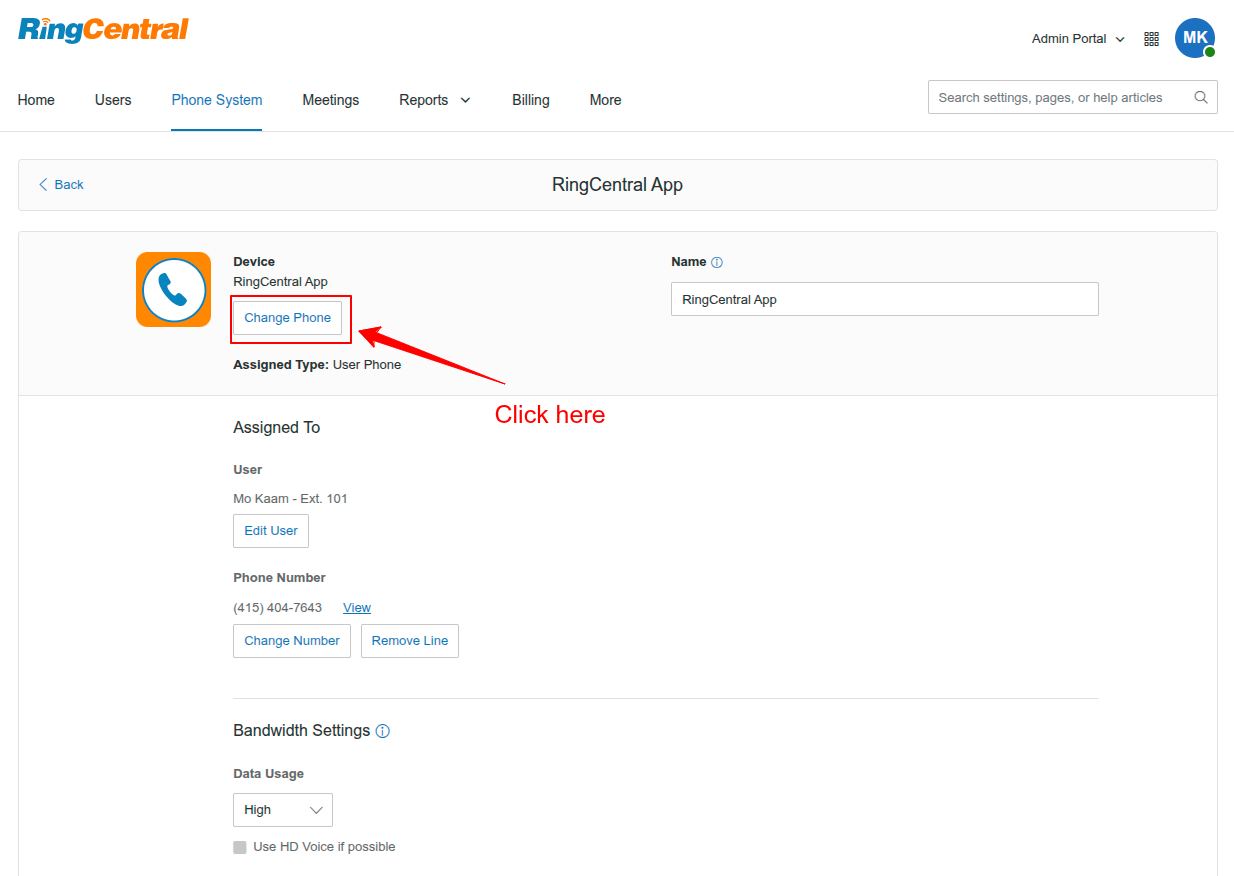
Change Phone Settings
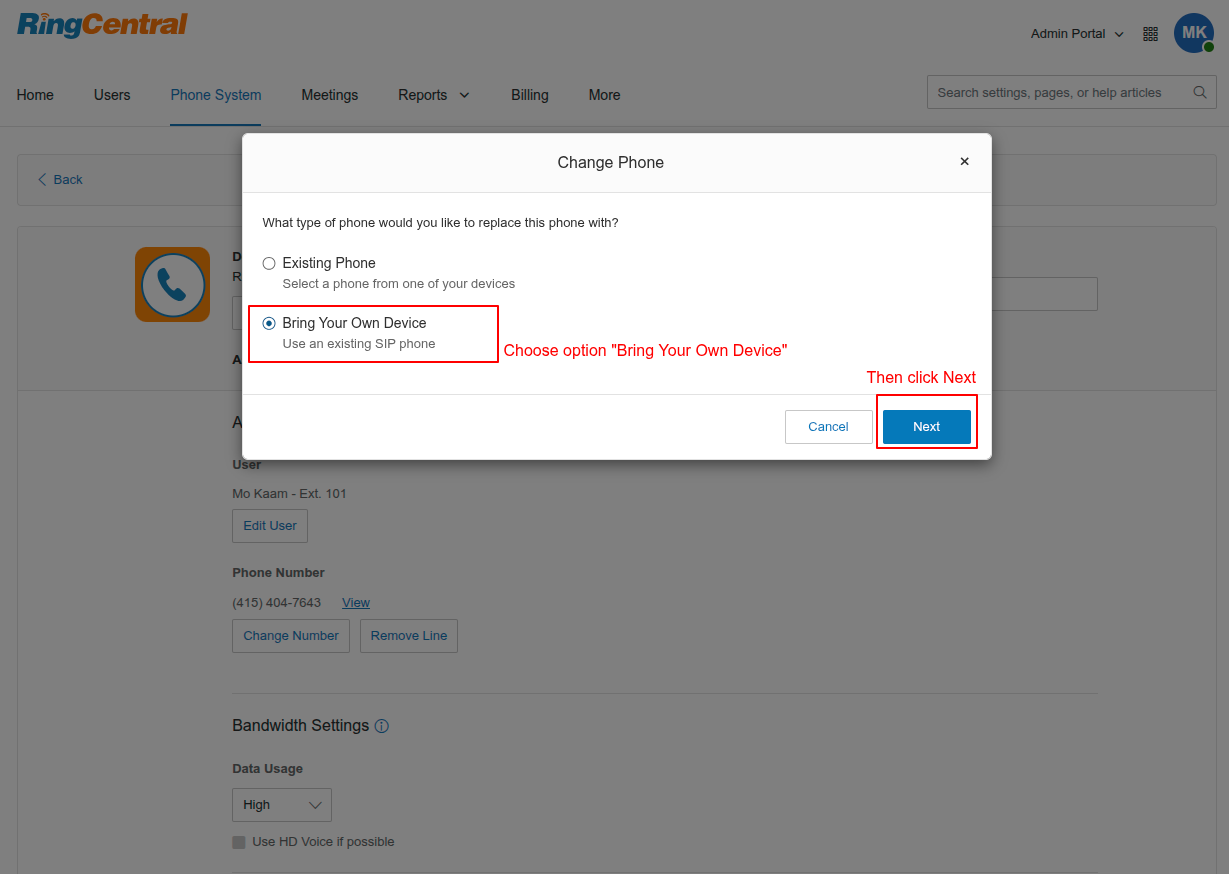
Click the "Change Phone" button
Select "Bring Your Own Device"
Choose BYOD option and click Next
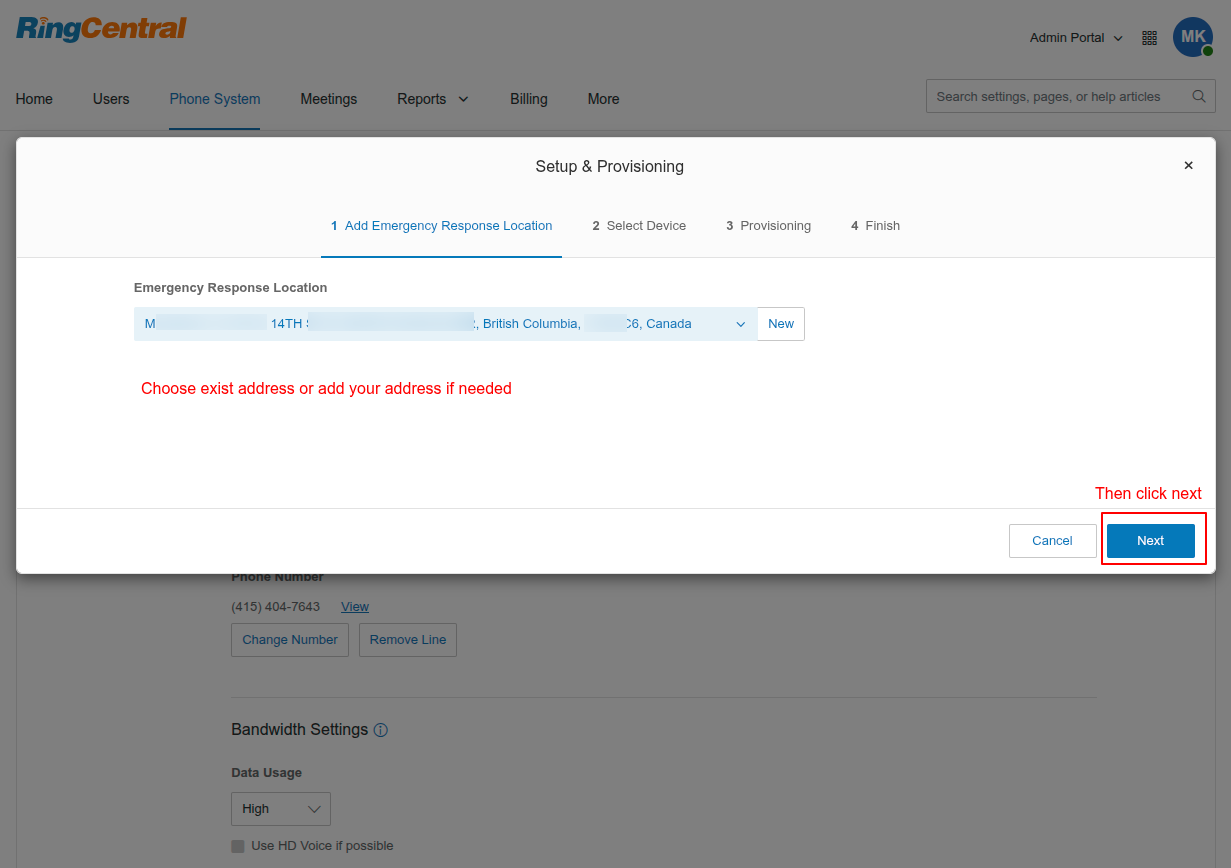
Select or Add Emergency Address
Choose your registered address or add a new one
Important
If you haven't registered an address before, click "New" to add one. Then select it and click Next.
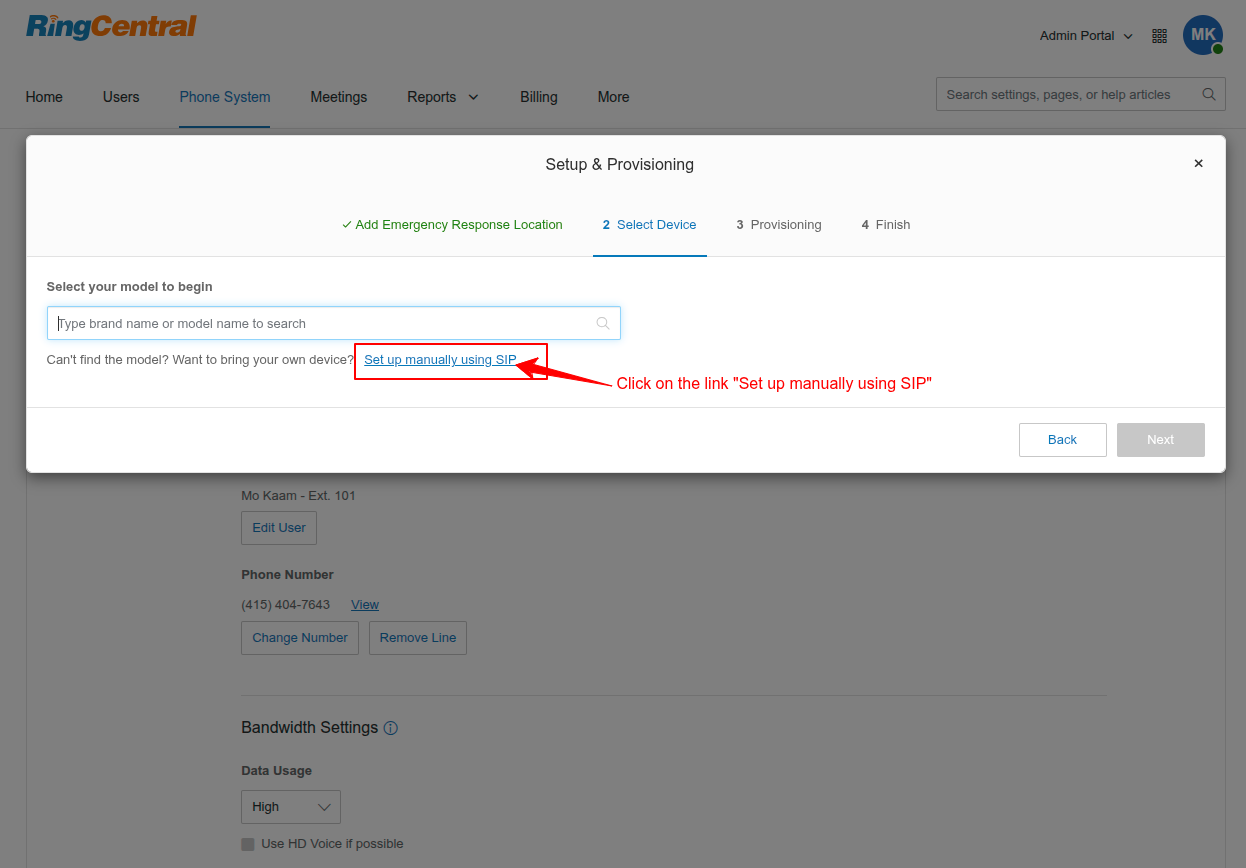
Choose Manual SIP Setup
Click on "Set up manually using SIP" link
What's Happening Here?
You're setting up DialApp as your device for managing calls through RingCentral.
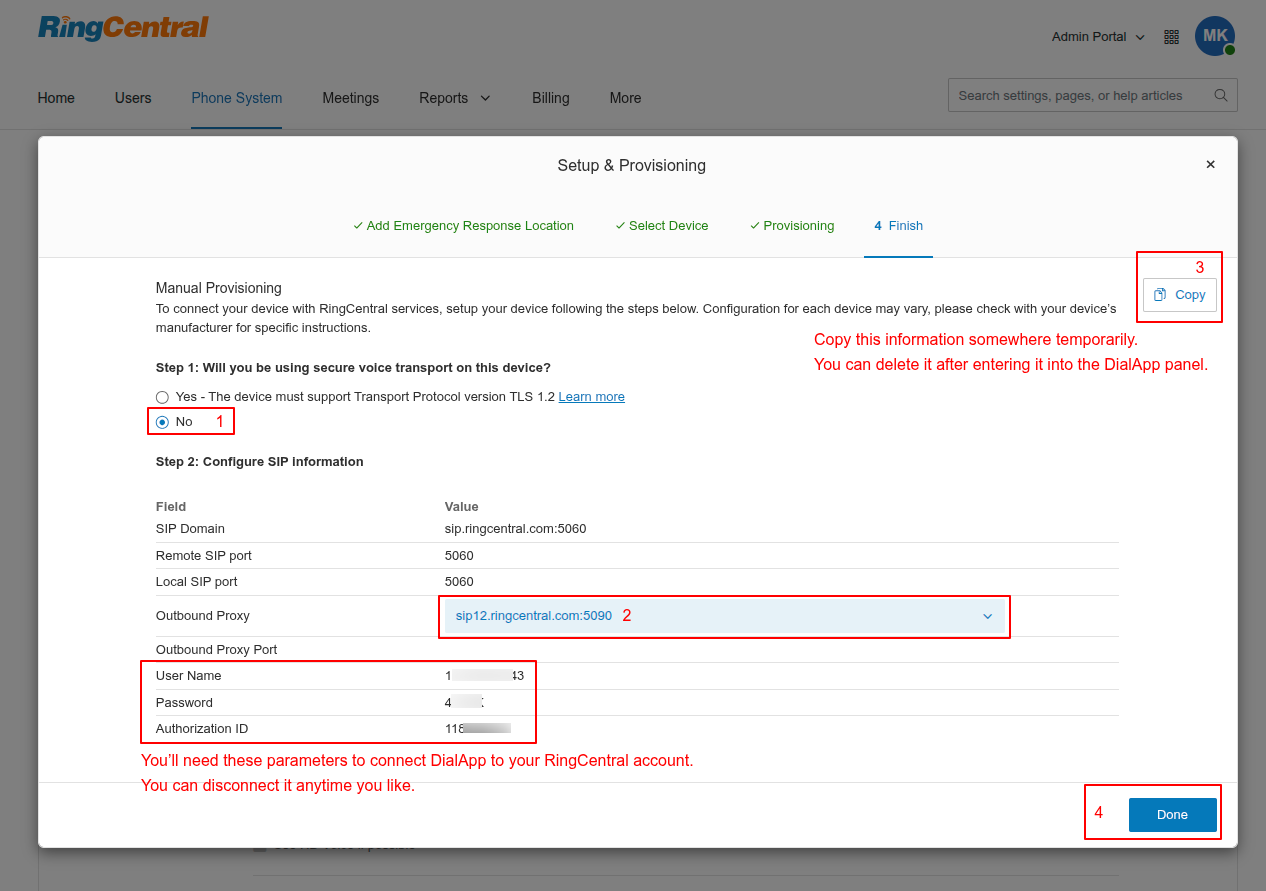
Configure SIP Settings
Select "No" and choose North America proxy
sip12.ringcentral.com:5090
Alternative
If sip12 is not available, you can choose any other North America proxy option.
Important - Save These Values!
Copy the following information to a temporary text file. You'll need them in the next step:
- Username
- Password
- Authorization ID
After copying, click Done. You can delete the temporary file after connecting to DialApp.
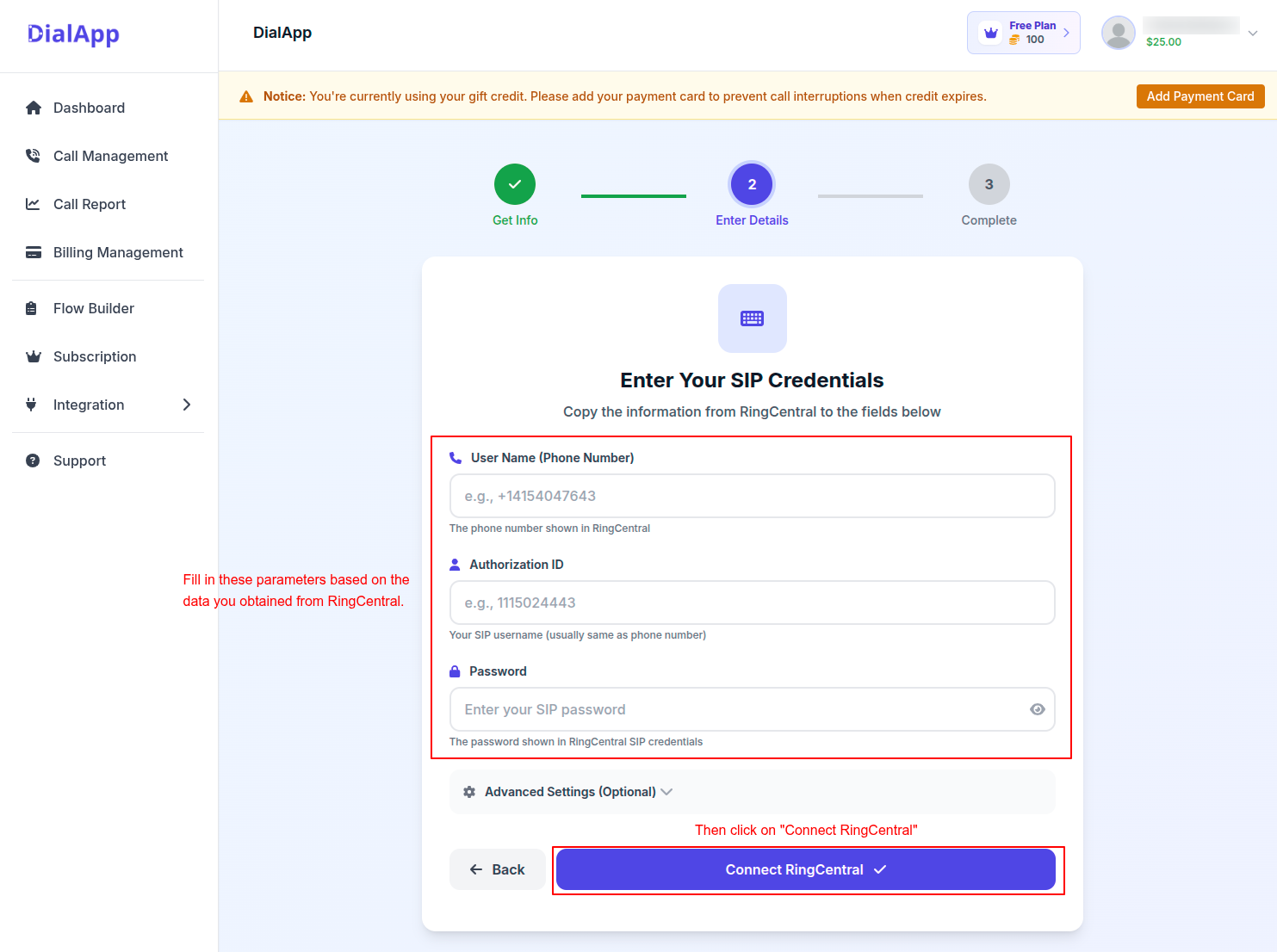
Connect DialApp
Enter your RingCentral credentials in DialApp
sip12.ringcentral.com:5090
Safe Integration Process
DialApp ensures your RingCentral service continues working normally:
Test Mode First
After connecting, DialApp assigns you a dedicated test number. Your RingCentral calls continue working as before.
Switch When Ready
Once you've tested your flows, you can switch to your main RingCentral number. All incoming calls will then be managed by DialApp.
Switch Back Anytime
You can always switch back to test mode. Your RingCentral service will return to its default state.
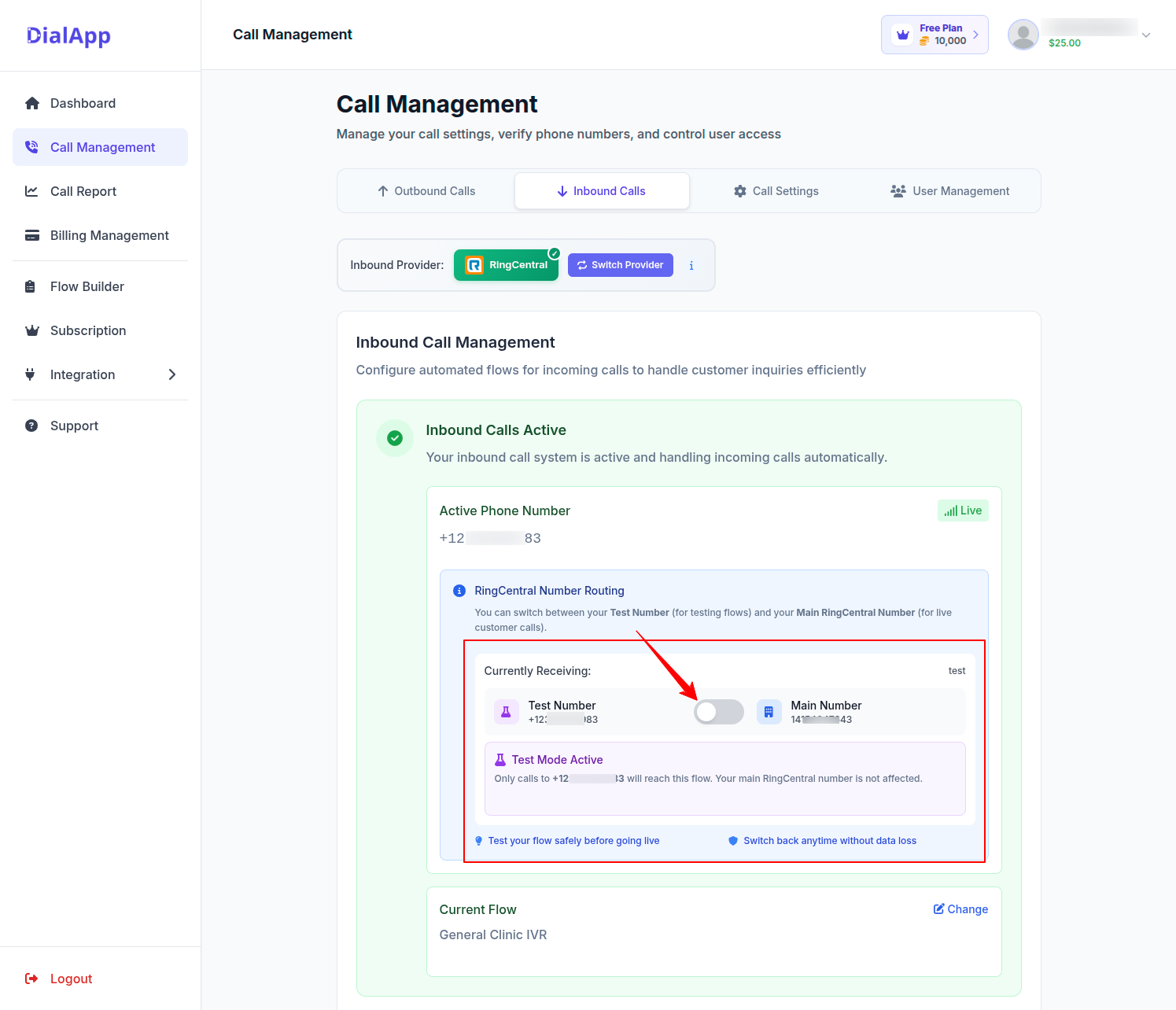
Easy Switching
As shown in the image, you can easily switch between test number and your main RingCentral number: