Microphone Access Guide
Learn how to enable microphone access for making calls through your browser
Common Error Message
❌ Requested device not found.
This error means either your browser doesn't have microphone access, or no microphone is connected to your system.
Quick Checklist
Check Your Microphone Hardware
Make sure a microphone is connected and working
Built-in Microphone
Most laptops have a built-in microphone. Desktop computers usually require an external microphone or headset.
External Microphone or Headset
If using an external device, make sure it's:
- Properly plugged into the correct port (pink/red for microphone)
- USB devices are fully connected and recognized
- Bluetooth headsets are paired and connected
- Device is turned on (if it has a power button)
Quick Test on Windows:
- Right-click the speaker icon in taskbar
- Select "Sound settings"
- Scroll to "Input" section
- Speak into your microphone and watch the volume bar move
Enable Microphone in Chrome Browser
Grant microphone permission to the website
Why Chrome Needs Permission
For your privacy and security, Chrome requires explicit permission before any website can access your microphone.
Method 1: Using Address Bar Icon
Look for the microphone icon in the address bar
When you try to make a call, Chrome will show a microphone icon (🎤) or camera icon at the left side of the address bar
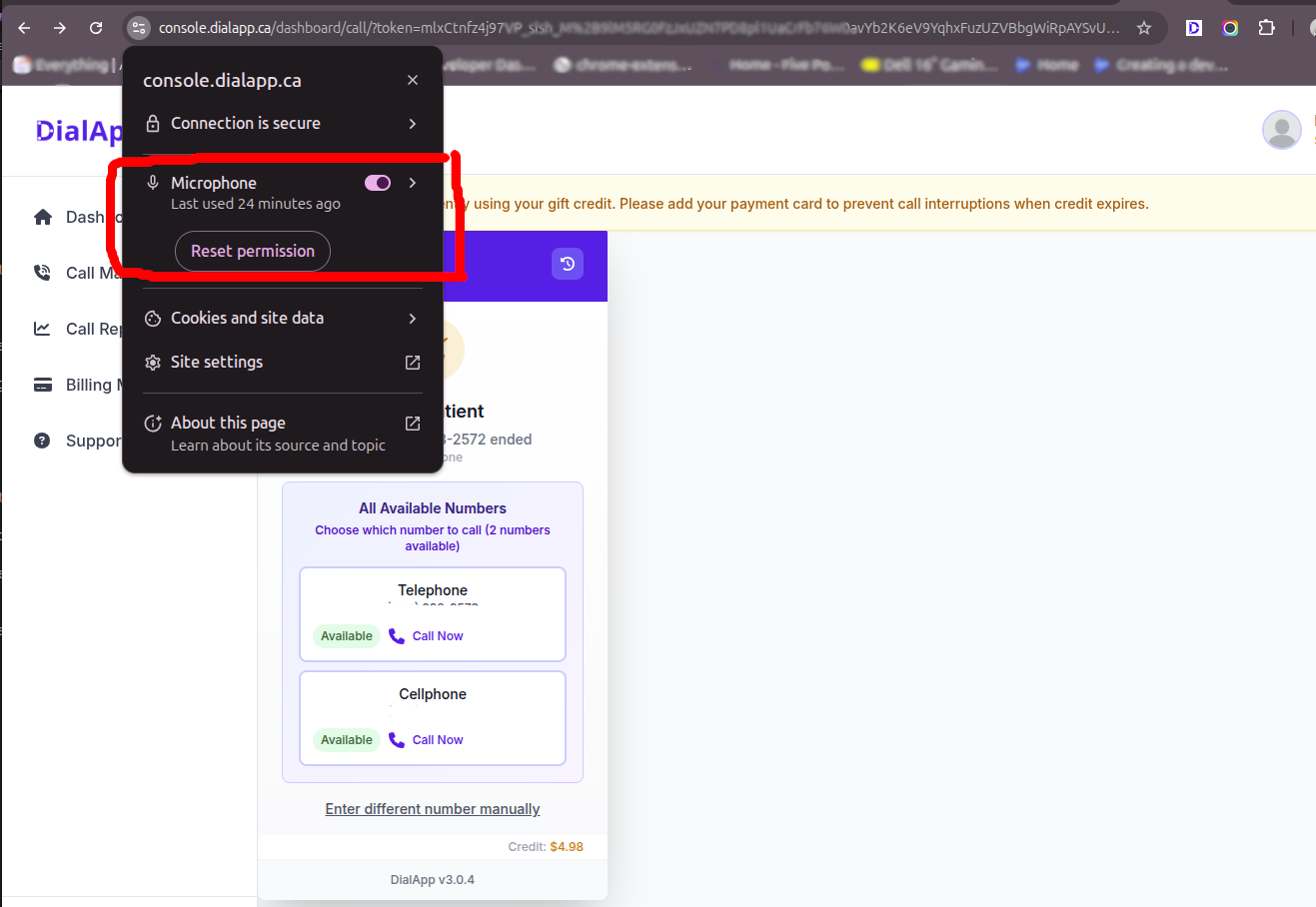
Click on the microphone icon
A dropdown menu will appear with permission options
Select "Always allow" and click "Done"
This will save the permission so you don't need to grant it every time
Method 2: Using Chrome Settings
Click the three dots menu (⋮) in top-right corner
This opens Chrome's main menu
Select "Settings"
Opens Chrome settings page in a new tab
Click "Privacy and security" in left sidebar
Then click "Site Settings"
Scroll down and click "Microphone"
Under "Permissions" section
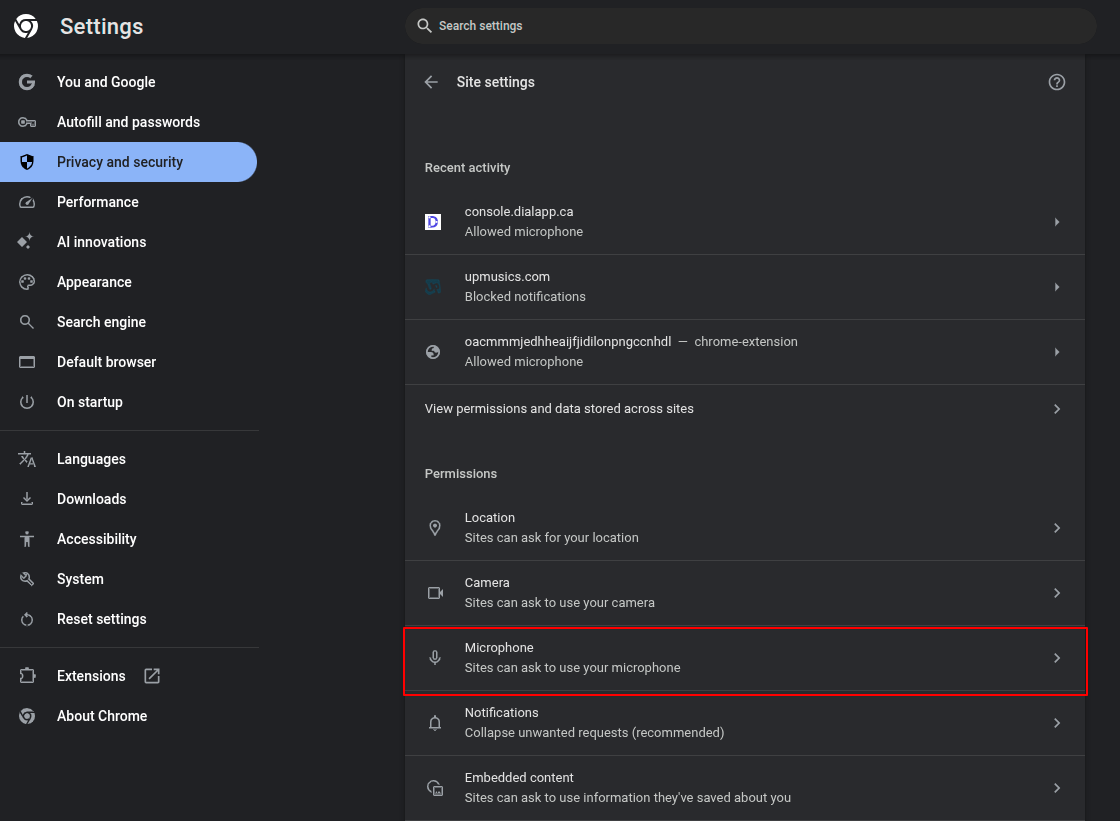
Make sure "Sites can ask to use your microphone" is enabled
Toggle should be blue/on
Find our website in the list
Look under "Allowed to use your microphone" section
If it's under "Not allowed", click the trash icon to remove it, then refresh the page to grant permission again
Select the Correct Microphone Device
Choose which microphone Chrome should use
Multiple Microphones?
If you have multiple audio devices (built-in mic, USB headset, Bluetooth), you need to select the correct one.
How to Select Microphone:
Pro Tip
Try speaking into your microphone while the list is open - Chrome shows a volume indicator to help you identify which device is active.
Test Your Microphone
Verify everything is working correctly
Success! 🎉
If you can see the audio levels responding to your voice, your microphone is working correctly!
Using Other Browsers?
Mozilla Firefox
- Click the padlock icon in address bar
- Find "Use the Microphone" permission
- Change from "Blocked" to "Allow"
- Refresh the page
Microsoft Edge
Similar to Chrome:
- Click Settings (⋮) → Settings
- Go to Cookies and site permissions
- Click Microphone
- Enable "Ask before accessing" and allow the site
Safari (Mac)
- Click Safari → Settings
- Go to Websites tab
- Select Microphone from sidebar
- Find the website and change to "Allow"
Still Having Issues?
Common Problems & Solutions:
🔴 Microphone not detected
→ Check Windows/Mac sound settings to ensure microphone is recognized by the system
🔴 Permission keeps resetting
→ Clear browser cache and cookies, then grant permission again
🔴 Audio quality is poor
→ Check microphone positioning, reduce background noise, or try a different device
🔴 Works in other apps but not browser
→ Check if other programs are using the microphone exclusively
Try a Hard Reset:
- Close all browser tabs
- Clear browser cache (Ctrl+Shift+Delete)
- Restart your browser
- Go to the site and grant permission fresh
Need More Help?
If you've followed all the steps and still experiencing issues, our support team is here to help!